Introduction
If you’re serious about growing your website’s organic traffic in 2026, you can’t rely on guesswork and generic SEO advice alone. You need to see exactly what Google sees when it crawls, indexes, and ranks your site. That’s where Google Search Console (GSC) becomes your most powerful ally. This free tool from Google is essentially a direct line into Google’s understanding of your website—and learning how to set up Google Search Console step by step 2026 is the foundation of every successful SEO strategy.
Whether you’re a blogger, business owner, e-commerce operator, or digital marketer, properly configuring Google Search Console can mean the difference between your content reaching its intended audience or remaining invisible in search results. In this comprehensive guide, we’ll walk you through the entire setup process, from initial account creation to advanced configuration, ensuring you capture every valuable insight Google provides about your site’s search performance.
Google Search Console has evolved significantly over the years, and the 2026 version comes with enhanced AI-powered features, improved reporting capabilities, and deeper integration with other Google tools. Understanding how to set up Google Search Console step by step 2026 isn’t just about technical configuration—it’s about positioning your website to compete effectively in an increasingly complex digital landscape where AI Overviews, Core Web Vitals, and mobile-first indexing dominate the search experience.
By the end of this guide, you’ll have a fully optimized Search Console property, understand how to submit sitemaps, verify ownership correctly, interpret key reports, and leverage the latest 2026 features to drive measurable improvements in your search visibility. Let’s dive into the complete setup process.
What Is Google Search Console and Why It Matters in 2026
Google Search Console is a free webmaster tool provided by Google that helps you monitor, maintain, and troubleshoot your website’s presence in Google Search results. Unlike third-party SEO tools that estimate your performance, GSC provides direct data from Google about how the search engine perceives and interacts with your site
.
In 2026, the importance of Google Search Console has magnified due to several critical developments in the search landscape:
AI-Powered Search Integration: Google now displays AI Overviews for numerous queries, showing AI-generated summaries at the top of search results. Google Search Console tracks impressions and clicks from these AI features, giving you unprecedented visibility into how your content performs in this new search paradigm
. Understanding your AI Overview performance is crucial for maintaining visibility as search behavior continues to evolve.
Core Web Vitals and Page Experience Signals: Google’s ranking algorithm places significant emphasis on user experience metrics known as Core Web Vitals. These metrics measure loading performance (Largest Contentful Paint), interactivity (Interaction to Next Paint), and visual stability (Cumulative Layout Shift). GSC serves as the primary data source for monitoring these metrics and identifying pages requiring improvement
.
Mobile-First Indexing Dominance: Google now predominantly uses the mobile version of your site for indexing and ranking. Search Console helps ensure your mobile experience meets Google’s standards and identifies mobile-specific issues that could negatively impact your rankings
.
Enhanced Reporting Accuracy: The April 2026 updates brought improved data accuracy, particularly for international websites targeting multilingual audiences, along with a new site health dashboard that highlights warnings and critical technical issues
.
What makes Google Search Console truly indispensable is that it stores up to 16 months of performance data—but it only begins collecting after you verify ownership of your site
. This means every day you delay proper setup is a day of lost historical data that could inform your SEO decisions.
Prerequisites Before You Begin
Before diving into how to set up Google Search Console step by step 2026, ensure you have the following:
- A Google Account: You’ll need a Google account (Gmail) to access Search Console. Use your business account if possible, especially if multiple team members will need access .
- Access to Your Website: Depending on your chosen verification method, you’ll need either DNS access (domain registrar/control panel), FTP/cPanel access (for HTML file upload), or the ability to edit your site’s header code (for meta tag verification).
- Your Website’s Primary URL: Identify your site’s canonical version—whether it uses www or non-www, and http or https. This matters significantly for URL prefix verification .
- A Sitemap URL: While not required for initial setup, having your sitemap ready (typically at
yoursite.com/sitemap.xml) will help you complete the full configuration immediately after verification.
Step 1: Accessing Google Search Console and Adding Your Property
Navigating to Google Search Console
Begin by navigating to the official Google Search Console homepage. You can search “Google Search Console” on Google or go directly to the official signup page. Click the “Start Now” button and sign in with your Google account
.
If you already have Search Console properties associated with your account, you’ll see them in the property selector dropdown in the upper-left corner. To add a new property, click the dropdown and select “Add property”
.
Understanding Properties in GSC
Google uses the term “property” to refer to a website or specific section of a website. When you add a property, you’re essentially telling Google, “I own or manage this site, and I want to see its search performance data”
.
You’ll be presented with two distinct setup options, and choosing the right one is critical for comprehensive data collection:
Step 2: Choosing Between Domain Property and URL Prefix
This decision is one of the most important in the setup process. Google Search Console offers two property types, each serving different monitoring needs
.
Option A: Domain Property (Recommended for Most Users)
A Domain property provides the most comprehensive view of your site because it includes:
- All protocols (http + https)
- All subdomains (www, blog, shop, etc.)
- All paths and subdirectories
When to choose this: If you want complete coverage of your entire domain, including any subdomains you currently use or might add in the future. This is ideal for businesses, e-commerce sites, and anyone serious about comprehensive SEO monitoring
.
Verification method: DNS TXT record verification through your domain registrar or DNS provider.
Option B: URL Prefix Property
A URL prefix property tracks only one specific version of your site, such as:
https://www.yoursite.com/https://www.yoursite.com/blog/
When to choose this: If you want to monitor a specific section of your site separately, or if you need quick setup without DNS access. This is useful for tracking a blog subfolder independently or when you have limited technical access
.
Verification methods: Multiple options including HTML file upload, HTML meta tag, Google Analytics, Google Tag Manager, or DNS verification.
Critical Note: Every website typically has four variations:
https://www.yoursite.comhttps://yoursite.comhttp://www.yoursite.comhttp://yoursite.com
Google Search Console treats URL prefix properties as separate entities. Even if all variations redirect to your primary version, it’s best practice to verify all four URL prefix variations to ensure complete ownership documentation and data collection
.
Step 3: Verifying Ownership – Complete Methods Breakdown
Verification is non-negotiable—you cannot use Google Search Console without proving you own or manage the site. Google offers multiple verification methods depending on your property type and technical capabilities
.
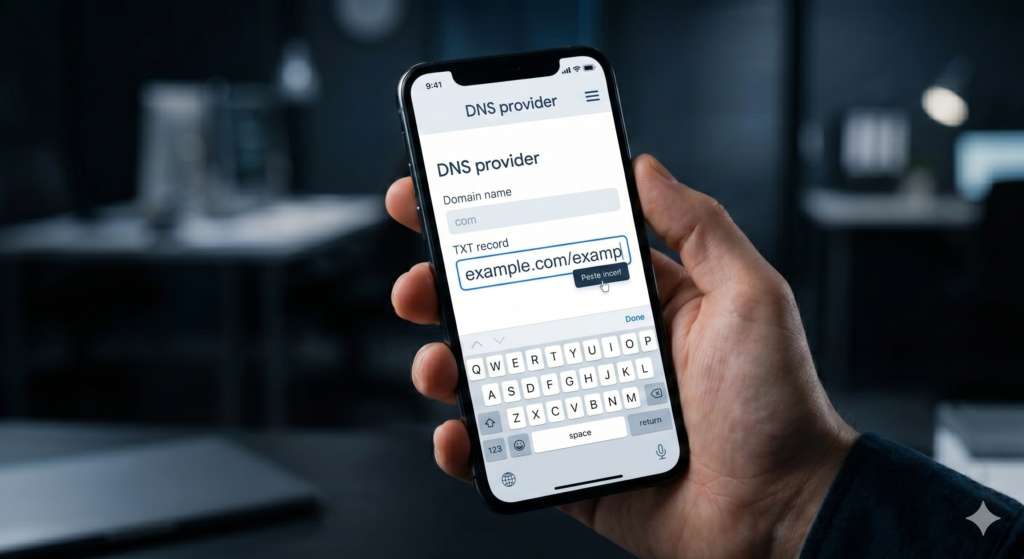
Method 1: DNS TXT Record Verification (Domain Property)
This is the most robust verification method and the only option for Domain properties.
Step-by-step process:
- In Search Console, select “Domain” as your property type.
- Enter your root domain only—without
http,https,www, or trailing slashes. For example, if your site ishttps://www.yoursite.com, enter onlyyoursite.com. - Click “Continue” and copy the TXT record value Google provides.
- Open a new tab and navigate to your domain registrar or DNS provider (GoDaddy, Cloudflare, Namecheap, etc.).
- Locate your DNS settings or DNS management panel.
- Add a new TXT record with the following specifications:
- Type: TXT
- Host/Name:
@(or leave blank depending on your provider) - Value: Paste the TXT string from Google Search Console
- TTL: Default or 1 hour
- Save your DNS changes.
- Return to Search Console and click “Verify”.
Important timing consideration: DNS changes can propagate anywhere from a few minutes to 48 hours. If verification fails immediately, wait at least one hour and try again
. Some providers, like GoDaddy, offer guided integration that can streamline this process
.
Method 2: HTML File Upload (URL Prefix – Recommended)
This method is straightforward and highly reliable when you have server access.
Step-by-step process:
- In Search Console, select “URL prefix” and enter your complete URL (e.g.,
https://www.yoursite.com/). - Click “Continue”.
- Select the “HTML file” verification method.
- Download the verification HTML file provided by Google.
- Access your website’s root directory via cPanel, FTP, or your hosting file manager.
- Upload the HTML file to the correct root directory based on your URL prefix. If verifying
https://www.yoursite.com/blog/, upload to the/blog/directory . - Return to Search Console and click “Verify”.
Critical maintenance note: Keep this verification file permanently in place. If you remove it later, you can lose access to your Search Console data
.
Method 3: HTML Meta Tag (URL Prefix)
Ideal when you can edit your site’s <head> section but prefer not to upload files.
Step-by-step process:
- In Search Console, select “URL prefix” and enter your full URL.
- Choose the “HTML tag” verification method.
- Copy the meta tag provided—it will look like:HTMLPreviewCopy
<meta name="google-site-verification" content="YOUR_UNIQUE_CODE_HERE"> - Add this tag to your homepage’s
<head>section:- WordPress: Use an SEO plugin (Yoast, Rank Math, All in One SEO) and paste the code in the “Webmaster Tools” or “Site Verification” section. Alternatively, edit your theme’s
header.phpfile . - Shopify: Navigate to Online Store → Themes → Edit code →
theme.liquid→ paste inside<head>. - Wix/Squarespace: Use the built-in SEO/Marketing tools → Site verification → paste code .
- Custom HTML: Edit your site’s HTML directly to include the tag before the closing
</head>tag.
- WordPress: Use an SEO plugin (Yoast, Rank Math, All in One SEO) and paste the code in the “Webmaster Tools” or “Site Verification” section. Alternatively, edit your theme’s
- Publish or save your changes.
- Return to Search Console and click “Verify”.
Maintenance requirement: Do not remove this meta tag after verification, or your access will be revoked
.
Method 4: Google Analytics Verification (URL Prefix)
Best when you already have Google Analytics installed with the same Google account.
Step-by-step process:
- In Search Console, select “URL prefix” and enter your URL.
- Choose “Google Analytics” as the verification method.
- Ensure Google Analytics is properly installed on your site and you’re using the same Google account with appropriate permissions .
- Confirm the GA tracking code is firing on the homepage.
- Click “Verify” in Search Console.
Common failure reasons:
- GA installed under a different Google account
- Tracking code missing from the verified URL version
- GA tag blocked by cookie consent mode until user acceptance
Method 5: Google Tag Manager Verification (URL Prefix)
Ideal for sites already running tracking through GTM.
Step-by-step process:
- In Search Console, select “URL prefix” and enter your URL.
- Choose “Google Tag Manager”.
- Confirm GTM is properly installed with both the
<head>and<body>snippets placed as instructed . - Verify you have container-level access with the Google account you’re using.
- Click “Verify”.
Common failure reasons:
- Only one GTM snippet installed (both head and body required)
- Wrong container installed on the site
- GTM snippet blocked by cookie consent mechanisms
Step 4: Adding All URL Variations (Best Practice)
After verifying your primary URL prefix property, it’s highly recommended to add and verify the remaining URL variations. While this may seem redundant, it ensures complete ownership documentation and prevents data fragmentation
.
The four variations to verify:
https://www.yoursite.comhttps://yoursite.com(non-www)http://www.yoursite.comhttp://yoursite.com
Process:
- Click “Add property” in the property selector.
- Enter the next URL variation.
- Click “Continue” and verify using your preferred method.
- Repeat for all variations.
Important clarification: You don’t need to actively monitor all four properties. Focus your analysis on your primary canonical version (typically https://www. or https://). The additional properties serve as ownership verification and safety nets
.
If you set up a Domain Property initially, this step is unnecessary—the Domain Property automatically covers all variations
.
Step 5: Submitting Your Sitemap
A sitemap is an XML file that lists all important URLs on your website, helping Google discover and crawl your content more efficiently. While Google can find pages without a sitemap, submitting one significantly speeds up discovery and ensures comprehensive indexing
.
Finding Your Sitemap
Most modern content management systems generate sitemaps automatically:
- WordPress (with Yoast, Rank Math, or similar SEO plugin): Typically found at
yoursite.com/sitemap.xmloryoursite.com/sitemap_index.xml - Shopify: Automatically generates
yoursite.com/sitemap.xml - Squarespace: Usually generates
yoursite.com/sitemap.xmlautomatically - Wix: Auto-generates sitemaps
- Custom sites: You may need to create one using a sitemap generator tool
Submitting Your Sitemap to GSC
- Log into Google Search Console.
- In the left sidebar, select “Sitemaps” under the “Indexing” section.
- Under “Add a new sitemap,” enter your sitemap URL (e.g.,
sitemap.xmlor the full URLhttps://www.yoursite.com/sitemap.xml) . - Click “Submit”.
- Look for the confirmation message indicating successful submission.
Monitoring Sitemap Status
After submission, you’ll see status updates in the sitemaps table:
- Success: Google successfully processed your sitemap
- Errors: Issues detected that need resolution
- Warnings: Non-critical issues that should be addressed
Troubleshooting tip: If you encounter errors, first refresh the page—Search Console sometimes shows temporary error statuses that resolve on refresh. If errors persist, verify that:
- The sitemap URL loads correctly in a browser
- You’re submitting to the correct property (matching www/non-www and http/https)
- The sitemap follows proper XML formatting standards
Step 6: Configuring Users and Permissions
Proper access management is crucial, especially for teams or agencies managing your SEO.
Understanding Access Levels
Verified Owner: The individual who completed the initial verification. Has full control including adding/removing users, changing settings, submitting sitemaps, and requesting indexing
.
Delegated Owner: Granted owner-level access by a verified owner. Has the same permissions but cannot manage the original verification method
.
Full User: Can view all data and perform most actions but cannot manage users or verification methods
.
Restricted User: Has limited visibility and cannot see all data or perform certain actions
.
Adding Team Members
- Navigate to Settings → Users and permissions.
- Click “Add user”.
- Enter the email address of the person you want to add.
- Select the appropriate access level based on their role.
- Click “Save”.
Security best practice: Only grant Owner access to essential personnel. Use Full User access for team members who need to analyze data and submit sitemaps, and Restricted User access for contractors or agencies that only need viewing rights.
Step 7: Essential Post-Setup Configurations
Linking Google Analytics 4
Connecting Search Console with Google Analytics 4 provides a holistic view of user behavior, allowing you to match search performance data with on-site engagement metrics
.
Integration steps:
- Sign in to Google Analytics 4.
- Select the property you want to connect.
- Click Admin (bottom-left corner).
- Under the Property column, select “All Products”.
- Find Search Console and click “Link Search Console”.
- Choose your verified site and click “Continue” then “Associate”.
Once linked, you’ll see search queries, impressions, and click data directly in your Analytics reports, enabling you to analyze what users do after arriving from organic search
.
Setting Up Email Notifications
Configure Search Console to send you email alerts about critical issues:
- Click the settings gear icon.
- Navigate to “Notifications”.
- Enable alerts for:
- Indexing issues
- Crawl errors
- Core Web Vitals problems
- Security issues
- Manual actions
Configuring the Site Health Dashboard (2026 Feature)
The April 2026 update introduced a new site health dashboard that provides at-a-glance visibility into crawling, rendering, and indexing issues
. To maximize this feature:
- Review all flagged critical issues immediately after setup.
- Prioritize fixing crawl errors and server errors (5xx errors) first.
- Address mobile usability issues, as these directly impact mobile-first indexing.
- Monitor the dashboard weekly to catch new issues before they impact rankings.
Step 8: Understanding and Using Key Reports
Once your setup is complete, data will begin populating within days (or immediately if Google has already been crawling your site). Here are the essential reports to master:
Performance Report: Your Search Traffic Command Center
This is the most frequently used report, showing:
- Total clicks: How many users clicked through to your site
- Total impressions: How many times your site appeared in search results
- Average CTR: Click-through rate (clicks divided by impressions)
- Average position: Your typical ranking position for queries
2026 AI Overview Integration: The Performance report now includes data from AI Overviews and AI Mode results. When your content appears in an AI Overview, impressions are counted when the result is scrolled into view or expanded, and clicks are counted when users click through to your site from the AI-generated summary
.
Segmentation capabilities: Filter data by:
- Queries: See which search terms trigger your site
- Pages: Identify top-performing and underperforming content
- Countries: Understand geographic distribution of traffic
- Devices: Compare mobile vs. desktop performance
- Search Appearance: Filter by standard results, rich results, image search, video search, and AI features
Index Coverage Report
Shows which pages Google has indexed and which have been excluded, along with reasons for exclusion. Critical for identifying:
- Pages blocked by robots.txt
- Pages with crawl errors
- Duplicate content issues
- Soft 404 errors
Core Web Vitals Report
Monitors your site’s page experience metrics:
- LCP (Largest Contentful Paint): Loading performance (should be under 2.5 seconds)
- INP (Interaction to Next Paint): Interactivity (should be under 200 milliseconds)
- CLS (Cumulative Layout Shift): Visual stability (should be under 0.1)
Mobile Usability Report
Identifies pages with mobile-specific issues that could hurt your mobile-first indexing performance. Common issues include:
- Text too small to read
- Clickable elements too close together
- Content wider than screen
- Viewport not set
Links Report
Provides insights into your site’s internal and external linking structure, including:
- Top linked pages (internal)
- Top linked pages (external)
- Top linking sites
- Top linking text
The April 2026 update enhanced this report with backlink relevancy data, making it easier to audit link quality and identify potentially toxic backlinks
.
Step 9: Advanced 2026 Features to Leverage
AI-Powered Configuration
Google introduced an experimental AI-powered configuration feature in early 2026 that allows you to describe the analysis you want in natural language. Search Console then automatically applies filters, comparisons, and metric selections
.
How to use it:
- Navigate to the Performance report.
- Look for the AI configuration option (experimental feature).
- Describe your analysis needs (e.g., “Show me mobile performance for blog posts in the last 30 days compared to the previous period”).
- Review the automatically generated report configuration.
- Refine as needed.
While this feature has limitations and requires accuracy review, it makes advanced analysis more accessible to non-technical users
.
Custom Annotations
Add contextual notes directly to performance charts to tie traffic changes to real-world actions:
- Content launches
- Site migrations
- Algorithm updates
- Marketing campaigns
This feature, introduced in early 2026, helps teams remember what happened and when, making trend analysis significantly more meaningful
.
Weekly and Monthly Data Aggregation
While daily data remains valuable for spotting short-term issues, the new weekly and monthly aggregation options help smooth volatility and reveal meaningful trends. These views are especially helpful when comparing time periods, removing noise caused by weekend fluctuations
.
Branded Queries Filter
This feature automatically separates branded and non-branded queries, helping you understand how brand recognition impacts search performance. Branded queries typically show higher CTRs, while non-branded queries reveal growth opportunities with new audiences
.
Step 10: Ongoing Maintenance and Best Practices
Setting up Google Search Console is not a one-time task. To maximize its value:
Weekly Tasks
- Check the site health dashboard for new critical issues
- Review the Performance report for significant changes
- Monitor Core Web Vitals for any degradations
Monthly Tasks
- Submit updated sitemaps if you’ve published significant new content
- Review index coverage for new excluded pages
- Analyze query data for emerging keyword opportunities
- Check mobile usability for new issues
Quarterly Tasks
- Conduct comprehensive technical SEO audits using GSC data
- Review and update user permissions
- Analyze backlink data for quality and relevancy
- Compare performance across devices and countries for strategic insights
Annual Tasks
- Re-verify ownership if you’ve changed domain providers or hosting
- Audit all URL prefix properties to ensure they remain verified
- Review and document major site changes using custom annotations
- Export historical data for long-term trend analysis
Common Setup Issues and Solutions
Issue 1: Verification Fails Repeatedly
Solution:
- For DNS verification, wait 24-48 hours for propagation
- Double-check that TXT records are entered exactly as provided
- Ensure no conflicting verification records exist
- Try a different verification method if one consistently fails
Issue 2: “Crawled – Currently Not Indexed”
Cause: Content quality issues, thin content, or duplicate content
.
Solution:
- Improve content depth and uniqueness
- Strengthen internal linking to the page
- Ensure the page provides distinct value compared to similar pages on your site
Issue 3: Sitemap Submission Errors
Solution:
- Verify the sitemap URL loads in a browser
- Check for XML formatting errors using a sitemap validator
- Ensure the sitemap uses the same protocol and domain version as your verified property
- For Squarespace users, contact support if sitemaps don’t auto-generate
Issue 4: Missing Data After Setup
Explanation: For new sites, it can take days or weeks for meaningful data to appear. Google needs time to crawl your pages and collect sufficient information
.
Solution:
- Submit your sitemap immediately after verification
- Use the URL Inspection tool to request indexing for key pages
- Ensure your site isn’t blocking Googlebot via robots.txt or noindex tags
Who Should Use Google Search Console?
The short answer: every website owner. Specifically:
- Bloggers: Track which posts rank, identify content gaps, and optimize for featured snippets.
- E-commerce Owners: Monitor product page indexing, fix mobile usability issues, and track product schema performance.
- Digital Marketers: Connect search data with campaign performance and ROI.
- SEO Professionals: Conduct technical audits, track ranking improvements, and identify optimization opportunities.
- Freelancers and Agencies: Demonstrate value to clients with direct-from-Google data.
- Startup Founders: Leverage AI-backed predictions and site health dashboards to compete effectively without extensive resources .
Conclusion
Mastering how to set up Google Search Console step by step 2026 is one of the highest-impact, lowest-cost actions you can take for your website’s SEO health. In an era where AI-driven search features, Core Web Vitals, and mobile-first indexing dominate the digital landscape, having direct access to Google’s perception of your site isn’t just helpful—it’s essential.
The setup process, while involving several technical steps, is straightforward when approached methodically. Whether you choose the comprehensive Domain Property with DNS verification or the targeted URL Prefix property with HTML file verification, the key is completing the setup correctly and maintaining it diligently.
Remember that Google Search Console is not a “set it and forget it” tool. The 2026 updates have transformed it from a diagnostic utility into a strategic command center for SEO and digital marketing teams
. By leveraging custom annotations, AI-powered configurations, branded query filters, and the site health dashboard, you can move from reactive troubleshooting to proactive optimization.
The data you collect starting today will inform your decisions for the next 16 months and beyond. Every day of delayed setup is lost insight into how Google—and your potential customers—find and interact with your content. Follow this guide, complete your setup, and begin transforming search data into sustainable organic growth.
This blog is literally a game changer i request everyone to Read this blog full